Showing posts with label battery. Show all posts

Monday, November 19, 2012

12 Android battery life tips and tricks

12 Android battery life tips and tricks
Improve your Android phone's battery life with these tips

Battery life is one of the biggest issues in the Android world today. Take your SIM card out, turn off Wi-Fi and never touch it and it'll sit there happily, lasting for a whole week on one charge. But try to use it for anything "smart" and, well, that's where the problems start.

It's a pretty sorry state of affairs when we count the uptime of today's smartphones in numbers of hours rather than days, with the standard metric of decent battery life being whether a phone can last a whole working day on a single charge.

So are there any realistic things you can do to improve your phone's battery life, other than just switching it off, putting it a sock drawer and hoping no one ever wants to call you?

Yes, yes there are. Of course it's not possible to suddenly double your Android phone's uptime by magically tweaking a few settings, but you should be able to squeeze out a few more hours of life from even the puniest of batteries without compromising on performance too much.

Here are some easy, not-too-compromising methods of boosting your Android phone's battery life.

1. Set a rigid bedtime

Some of today's phones feature automation tools, which let you, say, turn off the mobile signal and Wi-Fi after a certain time. Putting your phone in this sort of induced coma will save power, so if your phone doesn't support scheduled activities, install a management app like Tasker and turn off all non-essential stuff over night. Or stick it in airplane mode yourself. You'll sleep better, too.

2. Deactivate Wi-Fi when not needed

If your phone's constantly sniffing out and trying to connect to every Wi-Fi signal in the area like a robot dog on heat, you're wasting power. Switch off Wi-Fi when out and about or when you know you're not going to be needing it. A Home screen toggle will make this easy. Think of it as something boring but essential you have to do, like always putting your seat belt on.

3. Upload and sync only on Wi-Fi

If you're a keen Dropbox user or rely heavily on music syncing services, you'll benefit greatly from only doing your uploading through Wi-Fi. It's vastly quicker, which means less connectivity time for your phone and less strain on the battered old lithium reserves.

Android battery life

4. Uninstall unnecessary apps

You can never be too sure what's running itself in the background, what with all the multi-tasking, self-uploading, auto-replicating features in today's modern Android apps, so at least minimise the chances of something randomly hoovering up all your battery by constantly trying to connect to some non-existent server, by deleting any unused or old apps.

Android battery life

5. Use push notifications if possible

Android's built-in email application is great and stylish and everything, but having it poll for messages every 15 minutes isn't the best for your battery. If your mail provider offers push notification support use it - the excellent standalone Hotmail app does, for example, which will help lessen power drain a little.

6. Check yourself

Apps like Battery Doctor will give you a much better indication of what's literally eating away at your phone's battery over time than Android's own limited battery life checker, which could help finger something that's the key culprit in draining power. And if you can live without it, bin it.

7. Install a brightness toggle widget

Set your phone to its minimum possible brightness by default, as it's your display that's by far the biggest user of power. Then stick a big brightness high/low toggle widget on the home screen, in a place you can find it without being able to see it (like when using your now ultra-gloomy phone outside). Then only max the brightness when you need to. It might help, and even the automatic brightness option uses a marginal amount of power, as the light sensor needs to... sense light.

Android battery life

8. Dump the widgets

Yes, widgets are a key part of Android, and we're trying to keep this guide practical and not simply tell you to nuke everything, but do you really need a constantly updating Facebook widget on a Home screen? It's just full of boring people's boring baby photos these days anyway, and updating widget content puts a constant strain on your battery throughout the day, even if you just activate your phone for a few seconds to check a text message.

9. Remove haptic feedback

Surely your brain's had enough practise using touch devices that it knows if you've pressed something or not by now? If so, turn off all the haptic feedback options. These little bumps and grinds use power each time you press a key, so try to get used to life without physical feedback.

10. Switch off GPS

Unless you're one of those people who's still using Foursquare to tell the world about it every time you go out to the shop to buy a packet of crisps, there's little reason to have GPS constantly active on your phone. Turn it on when you need it, and use the option to have your phone detect your location through the wi-fi connection. Wi-fi location is usually close enough an approximation for most apps. And if they do need GPS, they're clever enough to tell you anyway.

Android battery life

11. Put your phone on the windowsill...

A strong connection to your phone network requires less power to maintain, so the technical people tell us. So instead of keeping it in your pocket, stick it somewhere and point it in the right direction so you see the maximum number of connection strength bars. Simply flipping your phone 45 degrees on your desk might actually make the battery last longer. What a mind-blowing revelation, eh?

12. ...and keep it cool

Batteries work best in cooler temperatures, with prolonged warm periods gradually lowering their efficiency over time. Putting your phone in a looser pocket might help, or perhaps just gently fanning it while it charges. That might not be the best use of your working day, but at least you'll still be able to get on Twitter on the train home.


Source : http://www.techradar.com/news/phone-and-communications/mobile-phones/12-android-battery-life-tips-and-tricks-697772
Monday, November 5, 2012

How to maximize your iPhone’s battery life

iPhone Battery Large

Get the most out of your iPhone battery by following these steps, which should see you return the phone to it's charger less often.

It’s one of those first-world problems that we’re all trying to solve: How to make the battery on our iPhone last just that little while longer. Thanks to Apple’s wisdom, we can’t pull the battery and replace it with a fully charged one, so we have to examine our usage and the phone’s activities to extend the amount of time between charges.

The basics

Battery life can be increased just by familiarizing yourself with the Settings menu and toggling a few switches, some of which are fairly obvious, while others not so. Let’s get started: Open the Settings menu, and pay close attention.

  • Wi-Fi: This one is an easy one: If you don’t need it or are using 3G/4G, then turn off Wi-Fi. The convenience of not having to switch it on and off isn’t a fair trade for the power it uses while searching for networks.
  • Bluetooth: Another obvious one, but leaving Bluetooth on when you aren’t using it causes considerable battery drain.
  • Location Services: This one needs some consideration, as some apps — Maps for example — require location services to be active, so you may want to explore the Location Services menu (found under Privacy in iOS 6) and only turn off those you don’t use on a regular basis. For example, does IMDb and Ocarina really need to know where you are?
  • Time Zone: While you’re digging about in the Privacy menu, scroll down and tap System Services, where you’ll find a range of options including the chance to turn off automatic time-zone changes. In iOS 5 this was found to be a power hog, so if you don’t need it, turn it off. In fact, while you’re there, turn off Location-based iAds and Diagnostics too.
  • Push: Whether it’s Push emails or Push notifications, your phone will be chatting to the network on a regular basis with both activated, and therefore using precious power. Email accounts can be individually set up for Push data, so switch off those that you don’t always need to check, or if you’re serious about saving battery power, turn them all to “manual.” You’ll find these options under Settings, Mail/Contacts/Calendars and Fetch New Data. For notifications, there’s an entire menu dedicated to them in iOS 6, and each app that offers Push notifications can be activated or crucially, deactivated. Like Push emails, if you’re serious about your iPhone’s battery, turn all but the essentials off.
  • Brightness: Turn Auto-Brightness on, but at the same time drag the brightness slider down as low as you dare. This will save significant energy.

iPhone App TrayIntermediate level

By managing Wi-Fi, Bluetooth, Push, and the brightness of your iPhone’s screen, you’re well on your way to a longer lasting battery. But if you want more, then you’ll want to try these suggestions, although the effect won’t be as great as those described above.

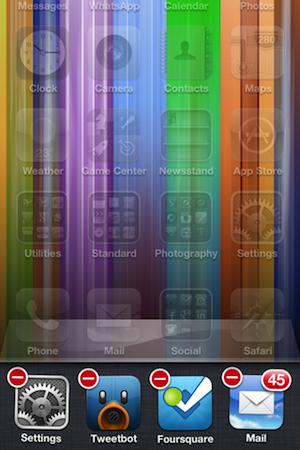
  • Manually Close Apps: This is a controversial one, as Apple will tell you that apps living in the app tray are in stasis, and shouldn’t drain your battery at all. Possibly, but many users will know certain apps still draw power when in this state. So, double tap the Home button, hold down an icon to enter “jiggly” mode, and close everything using the little “x.”
  • Siri: If you never ask Siri a question, shut her down under the Settings menu. She doesn’t do much unless you ask her something, but one less active feature can only be a good thing.
  • Screen Lock: Make sure your phone locks itself — which turns off the screen — after one minute. The less time it’s idle with the screen on, the better. Do this under Settings, General, and Auto-Lock.
  • iCloud: This works in a similar way to Push, where data is being transmitted from your phone to Apple’s servers in the background. If you don’t need to back up to iCloud, turn it off under iCloud in the Settings menu. You can also individually select what’s backed up too, and the fewer there are, the less time it takes. Plus, there’s the added benefit of using less iCloud storage space too.

For the hardcore among you

So, you’ve done all that you can, but the charger still beckons. Then it’s time to get serious. If you want your battery to last, really last; then sacrifices need to be made.

  • Cellular Data: No arguing, if you don’t need it, head to Settings, General then Cellular and turn it off. If calls are unimportant, putting the iPhone into Airplane mode will really stretch the battery’s life too. You’ll just be left holding the equivalent of an iPod Touch.
  • External Battery Packs: You may not be able to change the battery, but you can add a battery to the iPhone instead. There are many long-life battery packs available — mostly using the 30-pin connector, but that will change over time — where you sacrifice size and weight in return for a heavy duty battery case plugged into your slim and light iPhone.

Finally, if you want the best from your battery; look after it. Regular charging patterns are good for phone batteries, and continually having it at 10-percent and only charging it halfway will shorten its lifespan, and provide poor performance. Modern Li-ion batteries may not have the same issues as older Ni-cad cells, but that doesn’t mean they don’t respond to proper treatment.


Source : http://www.digitaltrends.com/mobile/maximize-iphone-battery-life/

Thursday, October 25, 2012

Sony Odin handset may sport WhiteMagic screen technology

Sony Odin handset may sport WhiteMagic screen technology
Longer lasting battery and a big screen?

Sony's flagship handset for 2013 is rumoured to pack a 5-inch display and new reports suggest it will also sport WhiteMagic technology.

We heard about a super-sized screen earlier this month after Japanese display manufacturer JDI revealed it was producing 5-inch, 1080p screens with an impressive 443ppi pixel density.

The screen has been linked with the Sony Odin, which is expected to be the Japanese firm's flagship handset for 2013, and new reports suggest it could be packing some seriously clever tech.

It's a kind of magic

Earlier this year Sony explained to TechRadar that the WhiteMagic tech was stuck at 4-inches, which pours a certain amount of cold water on the possibility of this rumour coming true.

According to a recent press release from JDI, the firm is readying prototypes of a 5-inch WhiteMagic display which boasts a 438ppi pixel density – slightly lower than the initial reports we saw from the firm, but never the less still very impressive.

One of the big selling points of the WhiteMagic screen is that it conserves power much more effectively and JDI claims it will have "low power consumption that is approximately 50% less by utilizing an RGBW pixel structure".

This will be a massive bonus for smartphone manufactures, as bigger screens and more powerful innards currently drain batteries quicker than you can say "where's my charger?"

As well as saving battery, the WhiteMagic technology also has another trick up its sleeve: instead of keeping you going for longer, it can be switched to double the brightness of the display, ensuring that your face is illuminated like a Christmas tree.

We can't be sure if the 5-inch, WhiteMagic display will make it into Sony's flagship smartphone next year, but we wouldn't be surprised if it did.


Source : http://www.techradar.com/news/phone-and-communications/mobile-phones/sony-odin-handset-may-sport-whitemagic-screen-technology-1107204

Friday, October 19, 2012

Prototype E Ink Android phone puts your AMOLED screen to shame (but only in direct sunlight)

Onyx E Ink Smartphone

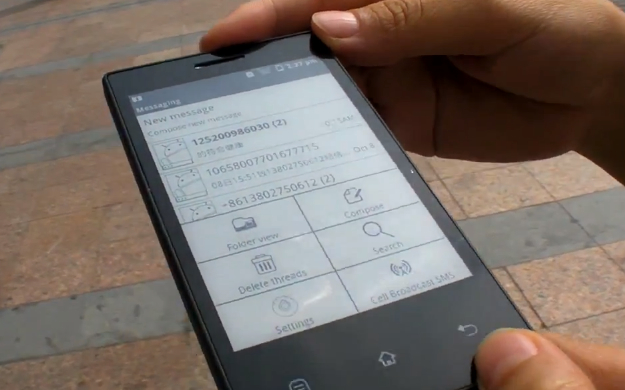
Onyx International, a company known for its range of e-readers, has shown off a prototype Android smartphone with an E Ink display. While the outdoor legibility and battery life are both excellent, the screen does let it down in other areas.

As every owner knows only too well, smartphone screens are difficult to view in direct sunlight, and while pushing the brightness up to maximum can help, it doesn’t do wonders for the battery life.

Here’s an interesting solution to the problem from a company named Onyx International, a smartphone with an E Ink screen. Onyx has plenty of experience in the world of E Ink screens, as it produces the Boox series of e-readers. The handset is only a prototype at the moment, but you can see a working version in the video below, where its screen is compared to a Galaxy Nexus.

The result is spectacular, as the Nexus device just looks like it’s turned off the entire time, while the Onyx phone’s display is crisp and sharp, despite being viewed outdoors. This probably won’t come as a surprise to anyone who has used an e-reader over the past few years, and the superior performance of an E Ink screen in sunlight formed the basis of a recent Amazon Kindle ad campaign.

Surprisingly, the Onyx phone runs Google Android, which has been extensively modified to run on a monochrome screen, but as you can see, the core functionality is still there. Because E Ink screens only take little sips of battery power, the standby time on the prototype is a week. Try that on any other smartphone.

There are, however, one or two little drawbacks. E Ink displays aren’t known for their speed, and sure enough the refresh rate is terribly slow, meaning any multimedia or gaming would be impossible. Viewing text webpages is good though.

While it’s an impressive technical feat and the use of an E Ink screen on a phone certainly has its benefits, the thought of enduring those long refresh times and not being able to do the things that almost all other smartphones can do, would probably make ownership too frustrating. After all, If I wanted a long standby time, a monochrome screen and little else, I’d buy a basic feature phone.

Take a look at the video showing the phone in action and see what you think.


Source : http://www.digitaltrends.com/mobile/prototype-e-ink-android-phone-demonstrated-on-video/

Monday, October 15, 2012

This cellphone makes a better use of a sugar rush than you ever will

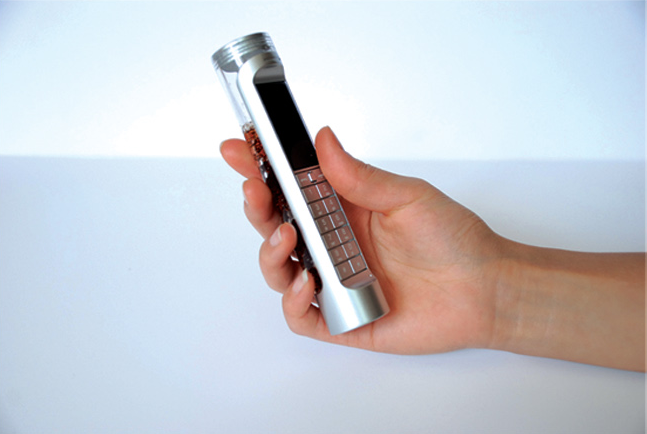
A concept phone utilizes sugary drinks as the power source for a cellphone, making the battery biodegradable.

I’ve been trying to quit soda for the past few weeks thanks to too many hours on Reddit and constant streams of photos that displayed how much sugar was in a can of Coke. As a result, there are untouched cans of soda sitting my fridge with no one to claim them, but it felt irresponsible if I just gave them to the kids next door. If only this eco-friendly concept cellphone existed. The design, by China-based Daizi Zheng, claims that a Nokia phone could be powered solely on sugary drinks. Now there’s an interesting use of leftover Coke that’s much more excitable than cleaning the rust off my pennies.

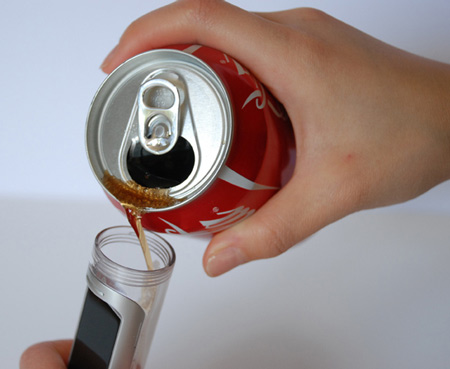
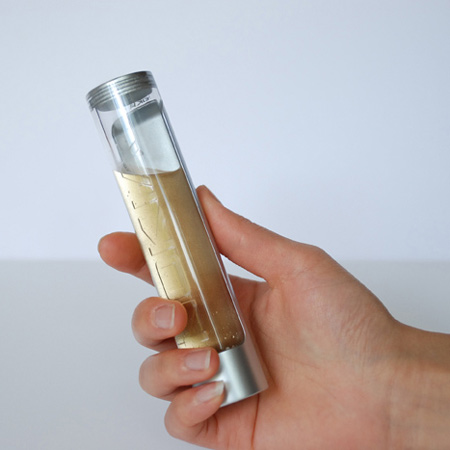
According to Zheng’s thesis, the phone would contain a chemical board that can form a reaction to utilize sugar enzymes and carbohydrates and convert them into electric power. The phone would work with most sugary drinks; in fact, more sugar means longer battery life. When the sugar and carbs are all used up as battery, you’re left over with a liquid that’s biodegradable, and the phone can be cleaned, refilled, and reused once again.

“Bio-batteries are fully biodegradable and have, on a single charge, a potential life-span three to four times longer than conventional lithium batteries,” Zheng writes on his website. Keep in mind, however, this design would be used with a basic, barebone phone, so no sticky touchscreen and apps here.

Coke powered nokia phone leftover liquidSince the design aims to be environmentally-friendly, it’s probably better to use straight sugar water than Coke or other packaged sodas, considering how they tend come in plastic bottles or cans — both of which are already pretty expensive to recycle. Still, it would be cool if the phone doubled as a drink bottle so you can choose to either gulp your soda or conserve it for more phone battery. This rationale would force the user to pick between drinking an unhealthy beverage or forgo it for the sake of your gadget’s usability. However, since the sugar disappears as the phone uses up the battery, it is unlikely that the soda you do end up drinking from the phone would taste any good. We also have to wonder if the fizzy noise would interfere with your sugar high calls.

It’s an interesting approach at multi-purposing a notorious food item, and such a gadget would make a neat science experiment for kids to learn about the wonders (and potential harms) of what sugary drinks means to them, and the chemical world.


Source : http://www.digitaltrends.com/mobile/coke-powered-cellphone-concept/

Saturday, September 29, 2012

SpareOne emergency phone: One battery, 15-year charge, now in waterproof bag

SpareOne Emergency Phone waterproof bag

When you can't rely on your smartphone battery to last forever, use the SpareOne emergency phone as backup.

Tis the season for new smartphone announcements. Whether you are a diehard gadgeteer or a general consumer shopping for a new phone, one of the most important thing you want to learn about a product is how long the battery lasts. You never know when you will need to make calls during emergency situations. Luckily, you don’t always have to rely on smartphones in case of long term power outages. The SpareOne emergency cellphone is your perfect backup, running on a single AA battery and can reportedly last up to 15 years with 10 hours of talk time.

SpareOne Emergency PhoneWe received a demo unit of the SpareOne phone and it’s as bare as an emergency phone gets. The candybar style device has all the buttons in the front, is extremely lightweight, and comes complete with the one AA battery it needs to power on. You’ll need to insert your own micro SIM card to make calls, but 911 will always work with or without a SIM. SpareOne recently released the device with a new waterproof, floating bag so your one emergency won’t get destroyed, making it durable in an all-weather situation.

While it’s not a particularly fancy gadget, it does seem like a fairly useful one to have sitting in your emergency shelf. If necessary, the phone also doubles as an torchlight and and last up to 24 hours with the single AA battery. Though the idea is for SpareOne to be an emergency backup phone, the device could make for a good starter phone for younger kids whom you don’t believe has the responsibility of owning a smartphone just yet — but should still have cellphone access at the minimum. It could also make for a good rugged, traveling phone for when you take outdoor trips and don’t want to ruin your fancy iPhone 5. Of course, the only problem you’ll run into in these situations is having to actually remember your contacts’ phone numbers or carry a phonebook … and when was the last time anyone did either?

If you’re intrigued, SpareOne emergency phone is available for purchase now at $120 apiece.


Source : http://www.digitaltrends.com/mobile/spareone-emergency-phone-one-battery-15-year-charge-now-in-waterproof-bag/